

Ever built a Power BI report, added a slicer, and then… nothing happens?
You click the slicer, but your visuals remain unchanged. It can be extremely frustrating, but usually, it’s down to one of these three common setup mistakes.
1.Slicer Interactions Are Off
Sometimes, the slicer and the visual just aren’t talking to each other.
The Fix:
Step 1: Select your Slicer
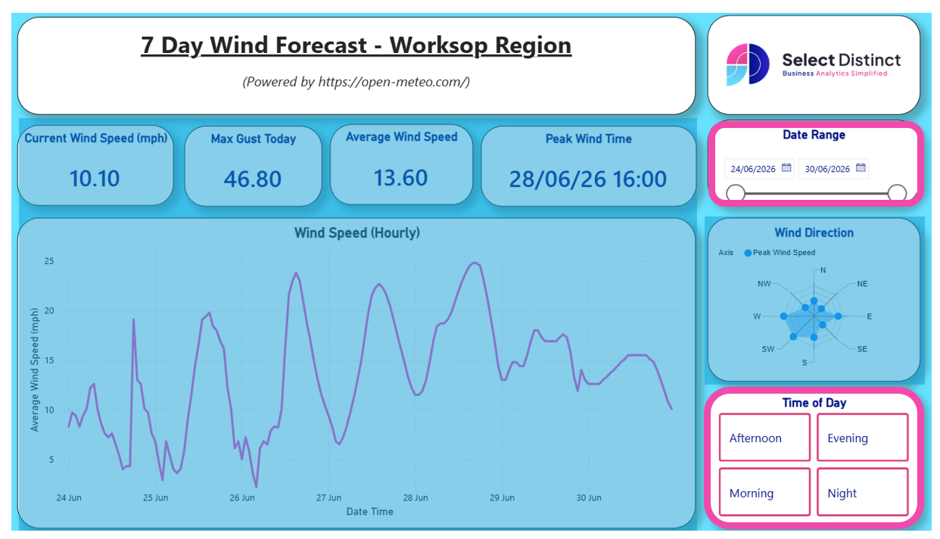
Step 2: Go to the top ribbon and select the Format tab.
Step 3: Click Edit Interactions

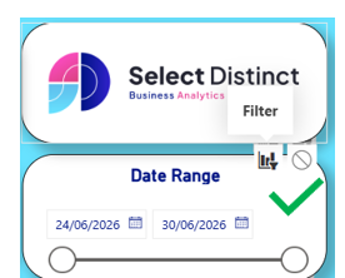
You will see small icons appear above your other visuals.
Make sure the Filter icon (the funnel) is selected.
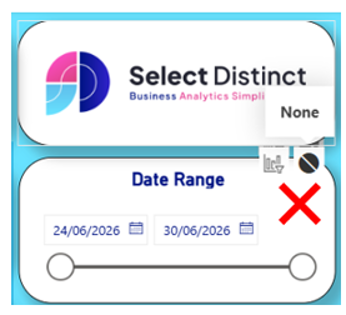
If the None icon (circle with a line) is active, the slicer is set to ignore that visual.
2. No Data Relationship
If your slicer is coming from a different table than the data in your visual, Power BI needs a bridge to connect them.
If there is no relationship between those two tables, the filter cannot pass through.
The Fix:
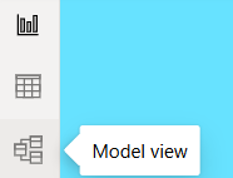
Step 1: Go to the Model view (the icon on the far left that looks like a diagram).
Step 2: Check if there is a line connecting your Slicer table to your Visual’s data table.
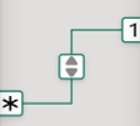
Step 3: If not, drag and drop the common field (e.g. Date or Category ID) from one table to the other to create the relationship.
A Real-World Example: Think of it like this: we have a Compass Directions table and a Worksop Weather table. By drawing a line between them, we create a “1-to-many” relationship.
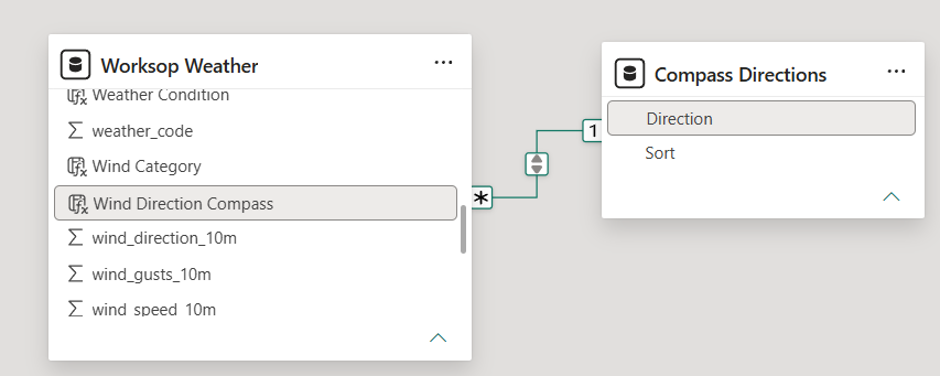
The Concept: This link acts as the bridge that allows a slicer to talk to the data. Because the tables are linked, when a user picks a value in the slicer, Power BI knows exactly which records to filter.
If that line is missing, the tables do not know they are related, and the dashboard will remain frozen regardless of slicer interaction
3. The Filter Direction Problem
Sometimes the relationship is there, but the filter hits a wall because it’s only set to travel one way.
The Fix:
Step 1: In Model view, double-click the relationship line connecting your tables.
Step 2: Check the Cross-filter direction in the menu that appears.
Step 3: While you can set this to “Both,” it is generally best to avoid it
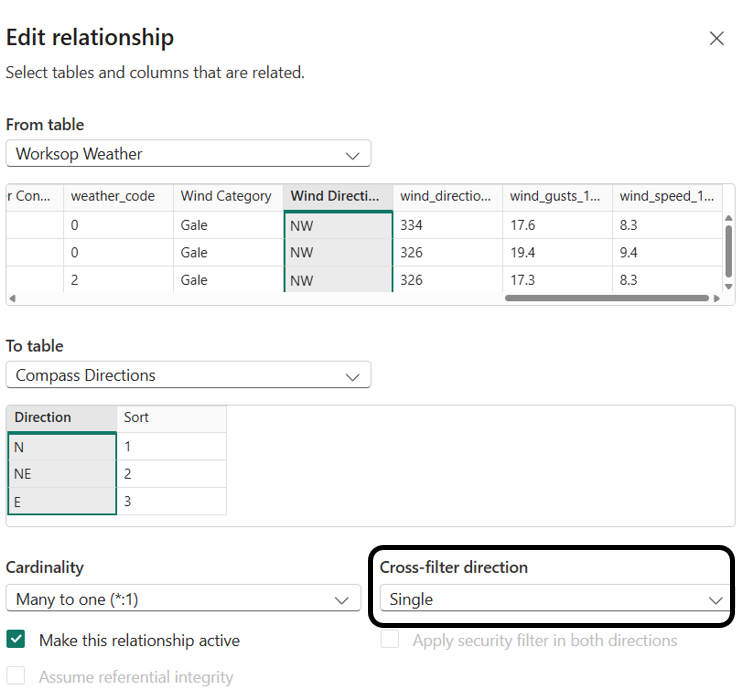
In our Worksop Weather project, we stick to “Single” direction. It’s all we need for the slicer to work.
If you find yourself needing “Both,” it’s usually a sign that your data model needs a rethink, not a settings change. Keep your model clean and your filters will behave.
Summary – Troubleshooting Your Slicer
If your slicer is not filtering your visual, check these three common areas:
| Issue | What to Check | Where to Go |
| Slicer Interactions | Check filter is active | Format Tab: Edit Interactions |
| Data Relationships | Confirm a (bridge) line exists between tables | Model View |
| Filter Direction | Check if the flow is set to “Single” | Model View: Relationship Properties |
Slicer Still Not Working?
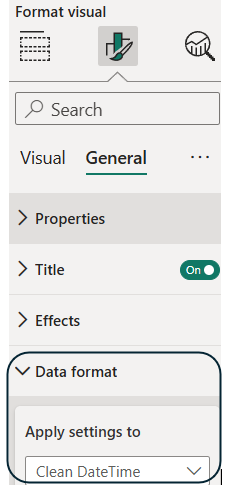
If you have checked these three things and your slicer is still behaving strangely, your data might have a mismatch (e.g. the slicer is set to “Text” but the visual is looking for “Numeric” values).
Conclusion: Keep Your Model Tidy
Power BI slicers are incredibly powerful, but they rely on a healthy data model to function correctly.
By keeping these three pillars: Interactions, Relationships, and Filter Direction in mind, you can troubleshoot almost any “frozen” slicer in minutes. Save this guide to your favourites for the next time you’re troubleshooting a build
Remember: a clean, logical data model is the secret to a fast, reliable, and frustration-free dashboard.